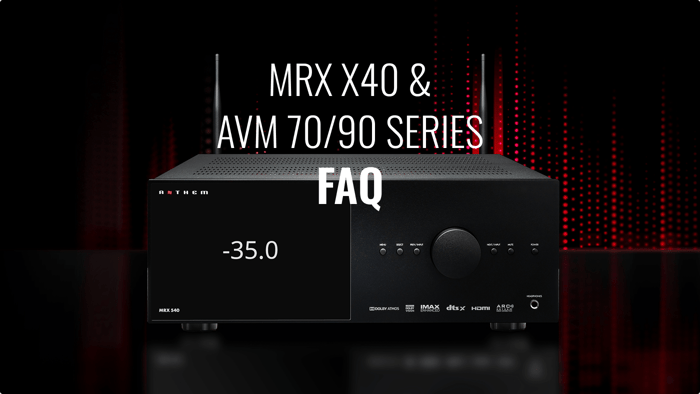

Curious about how to get the most from your Anthem MRX x40 Series receiver or AVM 70/90 processor? Our Anthem MRX x40 & AVM 70/90 Series FAQ section provides clear, expert answers to common questions about setup, performance, features, and troubleshooting. Whether you’re optimizing your home theater, connecting multiple zones, or exploring advanced features like ARC Genesis room correction and bi-amping, these answers are designed to help you enjoy every nuance of your MRX/AVM system.Table of Contents
- Table of Contents Table of Contents Table of ContentsTable of Contents Table of ContentsTable of ContentsTable of Contents Table of Contents Table of Contents Table of Contents Table of ContentsTable of Contents Table of Contents Table of Contents Table of Contents Table of ContentsTable of Contents Table of Contents Table of Contents Table of Contents Table of Contents Table of Contents Table of Contents Table of Contents Table of Contents Table of Contents Table of Contents Table of Contents Table of Contents Table of Contents Table of Contents Table of Contents Table of Contents Table of Contents Table of Contents Table of Contents Table of Contents Table of Contents Table of ContentsTable of ContentsI. Firmware UpdatesQ: How can I confirm if my MRX x40 / AVM 70 / 90 unit is up to date?II. Model DifferencesQ: What are the main differences between the MRX 540, MRX 740, and MRX 1140?III. Power OutputQ: What is the power output of the MRX x40 models?IV. Multi-Room & Whole-Home AudioQ: Can these receivers be used for multi-room setups?V. Control & Remote AccessQ: Can I control these receivers with a smartphone or tablet?VI. Video & HDMI FeaturesQ: Do these receivers support 8K video and HDMI 2.1?VII. Firmware UpgradesQ: How do I upgrade firmware and confirm the latest version?VIII. eARCQ: What is eARC and how do I enable it?IX. CEC ControlsQ: What are CEC controls?X. Analog Input & DAC BypassQ: Can I bypass Analog-to-Digital Conversion for DACs or turntables?XI. Master ResetQ: How do I perform a Master Reset on fourth-generation MRX or AVM units?I. Firmware UpdatesQ: How can I confirm if my MRX x40 / AVM 70 / 90 unit is up to date?II. Model DifferencesQ: What are the main differences between the MRX 540, MRX 740, and MRX 1140?III. Power OutputQ: What is the power output of the MRX x40 models?IV. Multi-Room & Whole-Home AudioQ: Can these receivers be used for multi-room setups?V. Control & Remote AccessQ: Can I control these receivers with a smartphone or tablet?VI. Video & HDMI FeaturesQ: Do these receivers support 8K video and HDMI 2.1?VII. Firmware UpgradesQ: How do I upgrade firmware and confirm the latest version?VIII. eARCQ: What is eARC and how do I enable it?IX. CEC ControlsQ: What are CEC controls?X. Analog Input & DAC BypassQ: Can I bypass Analog-to-Digital Conversion for DACs or turntables?XI. Master ResetQ: How do I perform a Master Reset on fourth-generation MRX or AVM units?I. Firmware Updates Q: How can I confirm if my MRX x40 / AVM 70 / 90 unit is up to date? II. Model Differences Q: What are the main differences between the MRX 540, MRX 740, and MRX 1140? III. Power Output Q: What is the power output of the MRX x40 models? IV. Multi-Room & Whole-Home Audio Q: Can these receivers be used for multi-room setups? V. Control & Remote Access Q: Can I control these receivers with a smartphone or tablet? VI. Video & HDMI Features Q: Do these receivers support 8K video and HDMI 2.1? VII. Firmware Upgrades Q: How do I upgrade firmware and confirm the latest version? VIII. eARC Q: What is eARC and how do I enable it? IX. CEC Controls Q: What are CEC controls? X. Analog Input & DAC Bypass Q: Can I bypass Analog-to-Digital Conversion for DACs or turntables? XI. Master Reset Q: How do I perform a Master Reset on fourth-generation MRX or AVM units? I. Firmware Updates Q: How can I confirm if my MRX x40 / AVM 70 / 90 unit is up to date? II. Model Differences Q: What are the main differences between the MRX 540, MRX 740, and MRX 1140? III. Power Output Q: What is the power output of the MRX x40 models? IV. Multi-Room & Whole-Home Audio Q: Can these receivers be used for multi-room setups? V. Control & Remote Access Q: Can I control these receivers with a smartphone or tablet? VI. Video & HDMI Features Q: Do these receivers support 8K video and HDMI 2.1? VII. Firmware Upgrades Q: How do I upgrade firmware and confirm the latest version? VIII. eARC Q: What is eARC and how do I enable it? IX. CEC Controls Q: What are CEC controls? X. Analog Input & DAC Bypass Q: Can I bypass Analog-to-Digital Conversion for DACs or turntables? XI. Master Reset Q: How do I perform a Master Reset on fourth-generation MRX or AVM units? I. Firmware Updates Q: How can I confirm if my MRX x40 / AVM 70 / 90 unit is up to date? II. Model Differences Q: What are the main differences between the MRX 540, MRX 740, and MRX 1140? III. Power Output Q: What is the power output of the MRX x40 models? IV. Multi-Room & Whole-Home Audio Q: Can these receivers be used for multi-room setups? V. Control & Remote Access Q: Can I control these receivers with a smartphone or tablet? VI. Video & HDMI Features Q: Do these receivers support 8K video and HDMI 2.1? VII. Firmware Upgrades Q: How do I upgrade firmware and confirm the latest version? VIII. eARC Q: What is eARC and how do I enable it? IX. CEC Controls Q: What are CEC controls? X. Analog Input & DAC Bypass Q: Can I bypass Analog-to-Digital Conversion for DACs or turntables? XI. Master Reset Q: How do I perform a Master Reset on fourth-generation MRX or AVM units? I. Firmware Updates Q: How can I confirm if my MRX x40 / AVM 70 / 90 unit is up to date? II. Model Differences Q: What are the main differences between the MRX 540, MRX 740, and MRX 1140? III. Power Output Q: What is the power output of the MRX x40 models? IV. Multi-Room & Whole-Home Audio Q: Can these receivers be used for multi-room setups? V. Control & Remote Access Q: Can I control these receivers with a smartphone or tablet? VI. Video & HDMI Features Q: Do these receivers support 8K video and HDMI 2.1? VII. Firmware Upgrades Q: How do I upgrade firmware and confirm the latest version? VIII. eARC Q: What is eARC and how do I enable it? IX. CEC Controls Q: What are CEC controls? X. Analog Input & DAC Bypass Q: Can I bypass Analog-to-Digital Conversion for DACs or turntables? XI. Master Reset Q: How do I perform a Master Reset on fourth-generation MRX or AVM units? I. Firmware Updates Q: How can I confirm if my MRX x40 / AVM 70 / 90 unit is up to date? II. Model Differences Q: What are the main differences between the MRX 540, MRX 740, and MRX 1140? III. Power Output Q: What is the power output of the MRX x40 models? IV. Multi-Room & Whole-Home Audio Q: Can these receivers be used for multi-room setups? V. Control & Remote Access Q: Can I control these receivers with a smartphone or tablet? VI. Video & HDMI Features Q: Do these receivers support 8K video and HDMI 2.1? VII. Firmware Upgrades Q: How do I upgrade firmware and confirm the latest version? VIII. eARC Q: What is eARC and how do I enable it? IX. CEC Controls Q: What are CEC controls? X. Analog Input & DAC Bypass Q: Can I bypass Analog-to-Digital Conversion for DACs or turntables? XI. Master Reset Q: How do I perform a Master Reset on fourth-generation MRX or AVM units? I. Firmware Updates Q: How can I confirm if my MRX x40 / AVM 70 / 90 unit is up to date? II. Model Differences Q: What are the main differences between the MRX 540, MRX 740, and MRX 1140? III. Power Output Q: What is the power output of the MRX x40 models? IV. Multi-Room & Whole-Home Audio Q: Can these receivers be used for multi-room setups? V. Control & Remote Access Q: Can I control these receivers with a smartphone or tablet? VI. Video & HDMI Features Q: Do these receivers support 8K video and HDMI 2.1? VII. Firmware Upgrades Q: How do I upgrade firmware and confirm the latest version? VIII. eARC Q: What is eARC and how do I enable it? IX. CEC Controls Q: What are CEC controls? X. Analog Input & DAC Bypass Q: Can I bypass Analog-to-Digital Conversion for DACs or turntables? XI. Master Reset Q: How do I perform a Master Reset on fourth-generation MRX or AVM units? I. Firmware Updates Q: How can I confirm if my MRX x40 / AVM 70 / 90 unit is up to date? II. Model Differences Q: What are the main differences between the MRX 540, MRX 740, and MRX 1140? III. Power Output Q: What is the power output of the MRX x40 models? IV. Multi-Room & Whole-Home Audio Q: Can these receivers be used for multi-room setups? V. Control & Remote Access Q: Can I control these receivers with a smartphone or tablet? VI. Video & HDMI Features Q: Do these receivers support 8K video and HDMI 2.1? VII. Firmware Upgrades Q: How do I upgrade firmware and confirm the latest version? VIII. eARC Q: What is eARC and how do I enable it? IX. CEC Controls Q: What are CEC controls? X. Analog Input & DAC Bypass Q: Can I bypass Analog-to-Digital Conversion for DACs or turntables? XI. Master Reset Q: How do I perform a Master Reset on fourth-generation MRX or AVM units? I. Firmware Updates Q: How can I confirm if my MRX x40 / AVM 70 / 90 unit is up to date? II. Model Differences Q: What are the main differences between the MRX 540, MRX 740, and MRX 1140? III. Power Output Q: What is the power output of the MRX x40 models? IV. Multi-Room & Whole-Home Audio Q: Can these receivers be used for multi-room setups? V. Control & Remote Access Q: Can I control these receivers with a smartphone or tablet? VI. Video & HDMI Features Q: Do these receivers support 8K video and HDMI 2.1? VII. Firmware Upgrades Q: How do I upgrade firmware and confirm the latest version? VIII. eARC Q: What is eARC and how do I enable it? IX. CEC Controls Q: What are CEC controls? X. Analog Input & DAC Bypass Q: Can I bypass Analog-to-Digital Conversion for DACs or turntables? XI. Master Reset Q: How do I perform a Master Reset on fourth-generation MRX or AVM units? I. Firmware Updates Q: How can I confirm if my MRX x40 / AVM 70 / 90 unit is up to date? II. Model Differences Q: What are the main differences between the MRX 540, MRX 740, and MRX 1140? III. Power Output Q: What is the power output of the MRX x40 models? IV. Multi-Room & Whole-Home Audio Q: Can these receivers be used for multi-room setups? V. Control & Remote Access Q: Can I control these receivers with a smartphone or tablet? VI. Video & HDMI Features Q: Do these receivers support 8K video and HDMI 2.1? VII. Firmware Upgrades Q: How do I upgrade firmware and confirm the latest version? VIII. eARC Q: What is eARC and how do I enable it? IX. CEC Controls Q: What are CEC controls? X. Analog Input & DAC Bypass Q: Can I bypass Analog-to-Digital Conversion for DACs or turntables? XI. Master Reset Q: How do I perform a Master Reset on fourth-generation MRX or AVM units? I. Firmware Updates Q: How can I confirm if my MRX x40 / AVM 70 / 90 unit is up to date? II. Model Differences Q: What are the main differences between the MRX 540, MRX 740, and MRX 1140? III. Power Output Q: What is the power output of the MRX x40 models? IV. Multi-Room & Whole-Home Audio Q: Can these receivers be used for multi-room setups? V. Control & Remote Access Q: Can I control these receivers with a smartphone or tablet? VI. Video & HDMI Features Q: Do these receivers support 8K video and HDMI 2.1? VII. Firmware Upgrades Q: How do I upgrade firmware and confirm the latest version? VIII. eARC Q: What is eARC and how do I enable it? IX. CEC Controls Q: What are CEC controls? X. Analog Input & DAC Bypass Q: Can I bypass Analog-to-Digital Conversion for DACs or turntables? XI. Master Reset Q: How do I perform a Master Reset on fourth-generation MRX or AVM units? I. Firmware Updates Q: How can I confirm if my MRX x40 / AVM 70 / 90 unit is up to date? II. Model Differences Q: What are the main differences between the MRX 540, MRX 740, and MRX 1140? III. Power Output Q: What is the power output of the MRX x40 models? IV. Multi-Room & Whole-Home Audio Q: Can these receivers be used for multi-room setups? V. Control & Remote Access Q: Can I control these receivers with a smartphone or tablet? VI. Video & HDMI Features Q: Do these receivers support 8K video and HDMI 2.1? VII. Firmware Upgrades Q: How do I upgrade firmware and confirm the latest version? VIII. eARC Q: What is eARC and how do I enable it? IX. CEC Controls Q: What are CEC controls? X. Analog Input & DAC Bypass Q: Can I bypass Analog-to-Digital Conversion for DACs or turntables? XI. Master Reset Q: How do I perform a Master Reset on fourth-generation MRX or AVM units? I. Firmware Updates Q: How can I confirm if my MRX x40 / AVM 70 / 90 unit is up to date? II. Model Differences Q: What are the main differences between the MRX 540, MRX 740, and MRX 1140? III. Power Output Q: What is the power output of the MRX x40 models? IV. Multi-Room & Whole-Home Audio Q: Can these receivers be used for multi-room setups? V. Control & Remote Access Q: Can I control these receivers with a smartphone or tablet? VI. Video & HDMI Features Q: Do these receivers support 8K video and HDMI 2.1? VII. Firmware Upgrades Q: How do I upgrade firmware and confirm the latest version? VIII. eARC Q: What is eARC and how do I enable it? IX. CEC Controls Q: What are CEC controls? X. Analog Input & DAC Bypass Q: Can I bypass Analog-to-Digital Conversion for DACs or turntables? XI. Master Reset Q: How do I perform a Master Reset on fourth-generation MRX or AVM units? I. Firmware Updates Q: How can I confirm if my MRX x40 / AVM 70 / 90 unit is up to date? II. Model Differences Q: What are the main differences between the MRX 540, MRX 740, and MRX 1140? III. Power Output Q: What is the power output of the MRX x40 models? IV. Multi-Room & Whole-Home Audio Q: Can these receivers be used for multi-room setups? V. Control & Remote Access Q: Can I control these receivers with a smartphone or tablet? VI. Video & HDMI Features Q: Do these receivers support 8K video and HDMI 2.1? VII. Firmware Upgrades Q: How do I upgrade firmware and confirm the latest version? VIII. eARC Q: What is eARC and how do I enable it? IX. CEC Controls Q: What are CEC controls? X. Analog Input & DAC Bypass Q: Can I bypass Analog-to-Digital Conversion for DACs or turntables? XI. Master Reset Q: How do I perform a Master Reset on fourth-generation MRX or AVM units? I. Firmware Updates Q: How can I confirm if my MRX x40 / AVM 70 / 90 unit is up to date? II. Model Differences Q: What are the main differences between the MRX 540, MRX 740, and MRX 1140? III. Power Output Q: What is the power output of the MRX x40 models? IV. Multi-Room & Whole-Home Audio Q: Can these receivers be used for multi-room setups? V. Control & Remote Access Q: Can I control these receivers with a smartphone or tablet? VI. Video & HDMI Features Q: Do these receivers support 8K video and HDMI 2.1? VII. Firmware Upgrades Q: How do I upgrade firmware and confirm the latest version? VIII. eARC Q: What is eARC and how do I enable it? IX. CEC Controls Q: What are CEC controls? X. Analog Input & DAC Bypass Q: Can I bypass Analog-to-Digital Conversion for DACs or turntables? XI. Master Reset Q: How do I perform a Master Reset on fourth-generation MRX or AVM units? I. Firmware Updates Q: How can I confirm if my MRX x40 / AVM 70 / 90 unit is up to date? II. Model Differences Q: What are the main differences between the MRX 540, MRX 740, and MRX 1140? III. Power Output Q: What is the power output of the MRX x40 models? IV. Multi-Room & Whole-Home Audio Q: Can these receivers be used for multi-room setups? V. Control & Remote Access Q: Can I control these receivers with a smartphone or tablet? VI. Video & HDMI Features Q: Do these receivers support 8K video and HDMI 2.1? VII. Firmware Upgrades Q: How do I upgrade firmware and confirm the latest version? VIII. eARC Q: What is eARC and how do I enable it? IX. CEC Controls Q: What are CEC controls? X. Analog Input & DAC Bypass Q: Can I bypass Analog-to-Digital Conversion for DACs or turntables? XI. Master Reset Q: How do I perform a Master Reset on fourth-generation MRX or AVM units? I. Firmware Updates Q: How can I confirm if my MRX x40 / AVM 70 / 90 unit is up to date? II. Model Differences Q: What are the main differences between the MRX 540, MRX 740, and MRX 1140? III. Power Output Q: What is the power output of the MRX x40 models? IV. Multi-Room & Whole-Home Audio Q: Can these receivers be used for multi-room setups? V. Control & Remote Access Q: Can I control these receivers with a smartphone or tablet? VI. Video & HDMI Features Q: Do these receivers support 8K video and HDMI 2.1? VII. Firmware Upgrades Q: How do I upgrade firmware and confirm the latest version? VIII. eARC Q: What is eARC and how do I enable it? IX. CEC Controls Q: What are CEC controls? X. Analog Input & DAC Bypass Q: Can I bypass Analog-to-Digital Conversion for DACs or turntables? XI. Master Reset Q: How do I perform a Master Reset on fourth-generation MRX or AVM units? I. Firmware Updates Q: How can I confirm if my MRX x40 / AVM 70 / 90 unit is up to date? II. Model Differences Q: What are the main differences between the MRX 540, MRX 740, and MRX 1140? III. Power Output Q: What is the power output of the MRX x40 models? IV. Multi-Room & Whole-Home Audio Q: Can these receivers be used for multi-room setups? V. Control & Remote Access Q: Can I control these receivers with a smartphone or tablet? VI. Video & HDMI Features Q: Do these receivers support 8K video and HDMI 2.1? VII. Firmware Upgrades Q: How do I upgrade firmware and confirm the latest version? VIII. eARC Q: What is eARC and how do I enable it? IX. CEC Controls Q: What are CEC controls? X. Analog Input & DAC Bypass Q: Can I bypass Analog-to-Digital Conversion for DACs or turntables? XI. Master Reset Q: How do I perform a Master Reset on fourth-generation MRX or AVM units? I. Firmware Updates Q: How can I confirm if my MRX x40 / AVM 70 / 90 unit is up to date? II. Model Differences Q: What are the main differences between the MRX 540, MRX 740, and MRX 1140? III. Power Output Q: What is the power output of the MRX x40 models? IV. Multi-Room & Whole-Home Audio Q: Can these receivers be used for multi-room setups? V. Control & Remote Access Q: Can I control these receivers with a smartphone or tablet? VI. Video & HDMI Features Q: Do these receivers support 8K video and HDMI 2.1? VII. Firmware Upgrades Q: How do I upgrade firmware and confirm the latest version? VIII. eARC Q: What is eARC and how do I enable it? IX. CEC Controls Q: What are CEC controls? X. Analog Input & DAC Bypass Q: Can I bypass Analog-to-Digital Conversion for DACs or turntables? XI. Master Reset Q: How do I perform a Master Reset on fourth-generation MRX or AVM units?I. Firmware Updates Q: How can I confirm if my MRX x40 / AVM 70 / 90 unit is up to date? II. Model Differences Q: What are the main differences between the MRX 540, MRX 740, and MRX 1140? III. Power Output Q: What is the power output of the MRX x40 models? IV. Multi-Room & Whole-Home Audio Q: Can these receivers be used for multi-room setups? V. Control & Remote Access Q: Can I control these receivers with a smartphone or tablet? VI. Video & HDMI Features Q: Do these receivers support 8K video and HDMI 2.1? VII. Firmware Upgrades Q: How do I upgrade firmware and confirm the latest version? VIII. eARC Q: What is eARC and how do I enable it? IX. CEC Controls Q: What are CEC controls? X. Analog Input & DAC Bypass Q: Can I bypass Analog-to-Digital Conversion for DACs or turntables? XI. Master Reset Q: How do I perform a Master Reset on fourth-generation MRX or AVM units? I. Firmware Updates Q: How can I confirm if my MRX x40 / AVM 70 / 90 unit is up to date? II. Model Differences Q: What are the main differences between the MRX 540, MRX 740, and MRX 1140? III. Power Output Q: What is the power output of the MRX x40 models? IV. Multi-Room & Whole-Home Audio Q: Can these receivers be used for multi-room setups? V. Control & Remote Access Q: Can I control these receivers with a smartphone or tablet? VI. Video & HDMI Features Q: Do these receivers support 8K video and HDMI 2.1? VII. Firmware Upgrades Q: How do I upgrade firmware and confirm the latest version? VIII. eARC Q: What is eARC and how do I enable it? IX. CEC Controls Q: What are CEC controls? X. Analog Input & DAC Bypass Q: Can I bypass Analog-to-Digital Conversion for DACs or turntables? XI. Master Reset Q: How do I perform a Master Reset on fourth-generation MRX or AVM units? I. Firmware Updates Q: How can I confirm if my MRX x40 / AVM 70 / 90 unit is up to date? II. Model Differences Q: What are the main differences between the MRX 540, MRX 740, and MRX 1140? III. Power Output Q: What is the power output of the MRX x40 models? IV. Multi-Room & Whole-Home Audio Q: Can these receivers be used for multi-room setups? V. Control & Remote Access Q: Can I control these receivers with a smartphone or tablet? VI. Video & HDMI Features Q: Do these receivers support 8K video and HDMI 2.1? VII. Firmware Upgrades Q: How do I upgrade firmware and confirm the latest version? VIII. eARC Q: What is eARC and how do I enable it? IX. CEC Controls Q: What are CEC controls? X. Analog Input & DAC Bypass Q: Can I bypass Analog-to-Digital Conversion for DACs or turntables? XI. Master Reset Q: How do I perform a Master Reset on fourth-generation MRX or AVM units? I. Firmware Updates Q: How can I confirm if my MRX x40 / AVM 70 / 90 unit is up to date? II. Model Differences Q: What are the main differences between the MRX 540, MRX 740, and MRX 1140? III. Power Output Q: What is the power output of the MRX x40 models? IV. Multi-Room & Whole-Home Audio Q: Can these receivers be used for multi-room setups? V. Control & Remote Access Q: Can I control these receivers with a smartphone or tablet? VI. Video & HDMI Features Q: Do these receivers support 8K video and HDMI 2.1? VII. Firmware Upgrades Q: How do I upgrade firmware and confirm the latest version? VIII. eARC Q: What is eARC and how do I enable it? IX. CEC Controls Q: What are CEC controls? X. Analog Input & DAC Bypass Q: Can I bypass Analog-to-Digital Conversion for DACs or turntables? XI. Master Reset Q: How do I perform a Master Reset on fourth-generation MRX or AVM units? I. Firmware UpdatesQ: How can I confirm if my MRX x40 / AVM 70 / 90 unit is up to date?II. Model DifferencesQ: What are the main differences between the MRX 540, MRX 740, and MRX 1140?III. Power OutputQ: What is the power output of the MRX x40 models?IV. Multi-Room & Whole-Home AudioQ: Can these receivers be used for multi-room setups?V. Control & Remote AccessQ: Can I control these receivers with a smartphone or tablet?VI. Video & HDMI FeaturesQ: Do these receivers support 8K video and HDMI 2.1?VII. Firmware UpgradesQ: How do I upgrade firmware and confirm the latest version?VIII. eARCQ: What is eARC and how do I enable it?IX. CEC ControlsQ: What are CEC controls?X. Analog Input & DAC BypassQ: Can I bypass Analog-to-Digital Conversion for DACs or turntables?XI. Master ResetQ: How do I perform a Master Reset on fourth-generation MRX or AVM units?I. Firmware Updates Q: How can I confirm if my MRX x40 / AVM 70 / 90 unit is up to date? II. Model Differences he power output of the MRX x40 models? IV. Multi Q: What are the main differences between the MRX 540, MRX 740, and MRX 1140? III. Power Output Q: What is the power output of the MRX x40 models? IV. Multi-Room & Whole-Home Audio Q: Can these receivers be used for multi-room setups? V. Control & Remote Access Q: Can I control these receivers with a smartphone or tablet? VI. Video & HDMI Features Q: Do these receivers support 8K video and HDMI 2.1? VII. Firmware Upgrades Q: How do I upgrade firmware and confirm the latest version? VIII. eARC Q: What is eARC and how do I enable it? IX. CEC Controls Q: What are CEC controls? X. Analog Input & DAC Bypass Q: Can I bypass Analog-to-Digital Conversion for DACs or turntables? XI. Master Reset Q: How do I perform a Master Reset on fourth-generation MRX or AVM units? I. Firmware Updates Q: How can I confirm if my MRX x40 / AVM 70 / 90 unit is up to date? II. Model Differences he power output of the MRX x40 models? IV. Multi Q: What are the main differences between the MRX 540, MRX 740, and MRX 1140? III. Power Output Q: What is the power output of the MRX x40 models? IV. Multi-Room & Whole-Home Audio Q: Can these receivers be used for multi-room setups? V. Control & Remote Access Q: Can I control these receivers with a smartphone or tablet? VI. Video & HDMI Features Q: Do these receivers support 8K video and HDMI 2.1? VII. Firmware Upgrades Q: How do I upgrade firmware and confirm the latest version? VIII. eARC Q: What is eARC and how do I enable it? IX. CEC Controls Q: What are CEC controls? X. Analog Input & DAC Bypass Q: Can I bypass Analog-to-Digital Conversion for DACs or turntables? XI. Master Reset Q: How do I perform a Master Reset on fourth-generation MRX or AVM units?I. Firmware Updates Q: How can I confirm if my MRX x40 / AVM 70 / 90 unit is up to date? II. Model Differences Q: What are the main differences between the MRX 540, MRX 740, and MRX 1140? IV. Multi Q: What are the main differences between the MRX 540, MRX 740, and MRX 1140? III. Power Output Q: What is the power output of the MRX x40 models? IV. Multi-Room & Whole-Home Audio Q: Can these receivers be used for multi-room setups? V. Control & Remote Access Q: Can I control these receivers with a smartphone or tablet? VI. Video & HDMI Features Q: Do these receivers support 8K video and HDMI 2.1? VII. Firmware Upgrades Q: How do I upgrade firmware and confirm the latest version? VIII. eARC Q: What is eARC and how do I enable it? IX. CEC Controls Q: What are CEC controls? X. Analog Input & DAC Bypass Q: Can I bypass Analog-to-Digital Conversion for DACs or turntables? XI. Master Reset Q: How do I perform a Master Reset on fourth-generation MRX or AVM units? I. Firmware Updates Q: How can I confirm if my MRX x40 / AVM 70 / 90 unit is up to date? II. Model Differences Q: What are the main differences between the MRX 540, MRX 740, and MRX 1140? IV. Multi Q: What are the main differences between the MRX 540, MRX 740, and MRX 1140? III. Power Output Q: What is the power output of the MRX x40 models? IV. Multi-Room & Whole-Home Audio Q: Can these receivers be used for multi-room setups? V. Control & Remote Access Q: Can I control these receivers with a smartphone or tablet? VI. Video & HDMI Features Q: Do these receivers support 8K video and HDMI 2.1? VII. Firmware Upgrades Q: How do I upgrade firmware and confirm the latest version? VIII. eARC Q: What is eARC and how do I enable it? IX. CEC Controls Q: What are CEC controls? X. Analog Input & DAC Bypass Q: Can I bypass Analog-to-Digital Conversion for DACs or turntables? XI. Master Reset Q: How do I perform a Master Reset on fourth-generation MRX or AVM units? I. Firmware UpdatesQ: How can I confirm if my MRX x40 / AVM 70 / 90 unit is up to date?II. Model DifferencesQ: What are the main differences between the MRX 540, MRX 740, and MRX 1140?IV. MultiQ: What are the main differences between the MRX 540, MRX 740, and MRX 1140?III. Power OutputQ: What is the power output of the MRX x40 models?IV. Multi-Room & Whole-Home AudioQ: Can these receivers be used for multi-room setups?V. Control & Remote AccessQ: Can I control these receivers with a smartphone or tablet?VI. Video & HDMI FeaturesQ: Do these receivers support 8K video and HDMI 2.1?VII. Firmware UpgradesQ: How do I upgrade firmware and confirm the latest version?VIII. eARCQ: What is eARC and how do I enable it?IX. CEC ControlsQ: What are CEC controls?X. Analog Input & DAC BypassQ: Can I bypass Analog-to-Digital Conversion for DACs or turntables?XI. Master ResetQ: How do I perform a Master Reset on fourth-generation MRX or AVM units?I. Firmware Updates Q: How can I confirm if my MRX x40 / AVM 70 / 90 unit is up to date? II. Model Differences Q: What are the main differences between the MRX 540, MRX 740, and MRX 1140? IV. Multi Q: What are the main differences between the MRX 540, MRX 740, and MRX 1140? III. Power Output Q: What is the power output of the MRX x40 models? IV. Multi-Room & Whole-Home Audio Q: Can these receivers be used for multi-room setups? V. Control & Remote Access Q: Can I control these receivers with a smartphone or tablet? VI. Video & HDMI Features Q: Do these receivers support 8K video and HDMI 2.1? VII. Firmware Upgrades Q: How do I upgrade firmware and confirm the latest version? VIII. eARC Q: What is eARC and how do I enable it? IX. CEC Controls Q: What are CEC controls? X. Analog Input & DAC Bypass Q: Can I bypass Analog-to-Digital Conversion for DACs or turntables? XI. Master Reset Q: How do I perform a Master Reset on fourth-generation MRX or AVM units?I. Firmware Updates Q: How can I confirm if my MRX x40 / AVM 70 / 90 unit is up to date? II. Model Differences Q: What are the main differences between the MRX 540, MRX 740, and MRX 1140?Q: What are the main differences between the MRX 540, MRX 740, and MRX 1140? III. Power Output Q: What is the power output of the MRX x40 models? IV. Multi-Room & Whole-Home Audio Q: Can these receivers be used for multi-room setups? V. Control & Remote Access Q: Can I control these receivers with a smartphone or tablet? VI. Video & HDMI Features Q: Do these receivers support 8K video and HDMI 2.1? VII. Firmware Upgrades Q: How do I upgrade firmware and confirm the latest version? VIII. eARC Q: What is eARC and how do I enable it? IX. CEC Controls Q: What are CEC controls? X. Analog Input & DAC Bypass Q: Can I bypass Analog-to-Digital Conversion for DACs or turntables? XI. Master Reset Q: How do I perform a Master Reset on fourth-generation MRX or AVM units? I. Firmware Updates Q: How can I confirm if my MRX x40 / AVM 70 / 90 unit is up to date? II. Model Differences Q: What are the main differences between the MRX 540, MRX 740, and MRX 1140?Q: What are the main differences between the MRX 540, MRX 740, and MRX 1140? III. Power Output Q: What is the power output of the MRX x40 models? IV. Multi-Room & Whole-Home Audio Q: Can these receivers be used for multi-room setups? V. Control & Remote Access Q: Can I control these receivers with a smartphone or tablet? VI. Video & HDMI Features Q: Do these receivers support 8K video and HDMI 2.1? VII. Firmware Upgrades Q: How do I upgrade firmware and confirm the latest version? VIII. eARC Q: What is eARC and how do I enable it? IX. CEC Controls Q: What are CEC controls? X. Analog Input & DAC Bypass Q: Can I bypass Analog-to-Digital Conversion for DACs or turntables? XI. Master Reset Q: How do I perform a Master Reset on fourth-generation MRX or AVM units? I. Firmware Updates Q: How can I confirm if my MRX x40 / AVM 70 / 90 unit is up to date? II. Model Differences Q: What are the main differences between the MRX 540, MRX 740, and MRX 1140?Q: What are the main differences between the MRX 540, MRX 740, and MRX 1140? III. Power Output Q: What is the power output of the MRX x40 models? IV. Multi-Room & Whole-Home Audio Q: Can these receivers be used for multi-room setups? V. Control & Remote Access Q: Can I control these receivers with a smartphone or tablet? VI. Video & HDMI Features Q: Do these receivers support 8K video and HDMI 2.1? VII. Firmware Upgrades Q: How do I upgrade firmware and confirm the latest version? VIII. eARC Q: What is eARC and how do I enable it? IX. CEC Controls Q: What are CEC controls? X. Analog Input & DAC Bypass Q: Can I bypass Analog-to-Digital Conversion for DACs or turntables? XI. Master Reset Q: How do I perform a Master Reset on fourth-generation MRX or AVM units? I. Firmware UpdatesQ: How can I confirm if my MRX x40 / AVM 70 / 90 unit is up to date?II. Model DifferencesQ: What are the main differences between the MRX 540, MRX 740, and MRX 1140?Q: What are the main differences between the MRX 540, MRX 740, and MRX 1140?III. Power OutputQ: What is the power output of the MRX x40 models?IV. Multi-Room & Whole-Home AudioQ: Can these receivers be used for multi-room setups?V. Control & Remote AccessQ: Can I control these receivers with a smartphone or tablet?VI. Video & HDMI FeaturesQ: Do these receivers support 8K video and HDMI 2.1?VII. Firmware UpgradesQ: How do I upgrade firmware and confirm the latest version?VIII. eARCQ: What is eARC and how do I enable it?IX. CEC ControlsQ: What are CEC controls?X. Analog Input & DAC BypassQ: Can I bypass Analog-to-Digital Conversion for DACs or turntables?XI. Master ResetQ: How do I perform a Master Reset on fourth-generation MRX or AVM units?I. Firmware UpdatesQ: How can I confirm if my MRX x40 / AVM 70 / 90 unit is up to date?II. Model DifferencesQ: What are the main differences between the MRX 540, MRX 740, and MRX 1140?Q: What are the main differences between the MRX 540, MRX 740, and MRX 1140?III. Power OutputQ: What is the power output of the MRX x40 models?IV. Multi-Room & Whole-Home AudioQ: Can these receivers be used for multi-room setups?V. Control & Remote AccessQ: Can I control these receivers with a smartphone or tablet?VI. Video & HDMI FeaturesQ: Do these receivers support 8K video and HDMI 2.1?VII. Firmware UpgradesQ: How do I upgrade firmware and confirm the latest version?VIII. eARCQ: What is eARC and how do I enable it?IX. CEC ControlsQ: What are CEC controls?X. Analog Input & DAC BypassQ: Can I bypass Analog-to-Digital Conversion for DACs or turntables?XI. Master ResetQ: How do I perform a Master Reset on fourth-generation MRX or AVM units?I. Firmware Updates Q: How can I confirm if my MRX x40 / AVM 70 / 90 unit is up to date? II. Model Differences Q: What are the main differences between the MRX 540, MRX 740, and MRX 1140?Q: What are the main differences between the MRX 540, MRX 740, and MRX 1140? III. Power Output Q: What is the power output of the MRX x40 models? IV. Multi-Room & Whole-Home Audio Q: Can these receivers be used for multi-room setups? V. Control & Remote Access Q: Can I control these receivers with a smartphone or tablet? VI. Video & HDMI Features Q: Do these receivers support 8K video and HDMI 2.1? VII. Firmware Upgrades Q: How do I upgrade firmware and confirm the latest version? VIII. eARC Q: What is eARC and how do I enable it? IX. CEC Controls Q: What are CEC controls? X. Analog Input & DAC Bypass Q: Can I bypass Analog-to-Digital Conversion for DACs or turntables? XI. Master Reset Q: How do I perform a Master Reset on fourth-generation MRX or AVM units? I. Firmware UpdatesQ: How can I confirm if my MRX x40 / AVM 70 / 90 unit is up to date?II. Model DifferencesQ: What are the main differences between the MRX 540, MRX 740, and MRX 1140?Q: What are the main differences between the MRX 540, MRX 740, and MRX 1140?III. Power OutputQ: What is the power output of the MRX x40 models?IV. Multi-Room & Whole-Home AudioQ: Can these receivers be used for multi-room setups?V. Control & Remote AccessQ: Can I control these receivers with a smartphone or tablet?VI. Video & HDMI FeaturesQ: Do these receivers support 8K video and HDMI 2.1?VII. Firmware UpgradesQ: How do I upgrade firmware and confirm the latest version?VIII. eARCQ: What is eARC and how do I enable it?IX. CEC ControlsQ: What are CEC controls?X. Analog Input & DAC BypassQ: Can I bypass Analog-to-Digital Conversion for DACs or turntables?XI. Master ResetQ: How do I perform a Master Reset on fourth-generation MRX or AVM units?I. Firmware Updates Q: How can I confirm if my MRX x40 / AVM 70 / 90 unit is up to date? II. Model Differences Q: What are the main differences between the MRX 540, MRX 740, and MRX 1140? III. Power Output Q: What is the power output of the MRX x40 models? IV. Multi-Room & Whole-Home Audio Q: Can these receivers be used for multi-room setups? V. Control & Remote Access Q: Can I control these receivers with a smartphone or tablet? VI. Video & HDMI Features Q: Do these receivers support 8K video and HDMI 2.1? VII. Firmware Upgrades Q: How do I upgrade firmware and confirm the latest version? VIII. eARC Q: What is eARC and how do I enable it? IX. CEC Controls Q: What are CEC controls? X. Analog Input & DAC Bypass Q: Can I bypass Analog-to-Digital Conversion for DACs or turntables? XI. Master Reset Q: How do I perform a Master Reset on fourth-generation MRX or AVM units? I. Firmware Updates Q: How can I confirm if my MRX x40 / AVM 70 / 90 unit is up to date? II. Model Differences Q: What are the main differences between the MRX 540, MRX 740, and MRX 1140? III. Power Output Q: What is the power output of the MRX x40 models? IV. Multi-Room & Whole-Home Audio Q: Can these receivers be used for multi-room setups? V. Control & Remote Access Q: Can I control these receivers with a smartphone or tablet? VI. Video & HDMI Features Q: Do these receivers support 8K video and HDMI 2.1? VII. Firmware Upgrades Q: How do I upgrade firmware and confirm the latest version? VIII. eARC Q: What is eARC and how do I enable it? IX. CEC Controls Q: What are CEC controls? X. Analog Input & DAC Bypass Q: Can I bypass Analog-to-Digital Conversion for DACs or turntables? XI. Master Reset Q: How do I perform a Master Reset on fourth-generation MRX or AVM units? I. Firmware Updates
- II. Model Differences
- III. Power Output
- IV. Multi-Room & Whole-Home Audio
- V. Control & Remote Access
- VI. Video & HDMI Features
- VII. Firmware Upgrades
- VIII. eARC
- IX. CEC Controls
- X. Analog Input & DAC Bypass
- XI. Master Reset
I. Firmware Updates
Table of Contents
- Table of Contents Table of Contents Table of ContentsTable of Contents Table of ContentsTable of ContentsTable of Contents Table of Contents Table of Contents Table of Contents Table of ContentsTable of Contents Table of Contents Table of Contents Table of Contents Table of ContentsTable of Contents Table of Contents Table of Contents Table of Contents Table of Contents Table of Contents Table of Contents Table of Contents Table of Contents Table of Contents Table of Contents Table of Contents Table of Contents Table of Contents Table of Contents Table of Contents Table of Contents Table of Contents Table of Contents Table of Contents Table of Contents Table of Contents Table of ContentsTable of ContentsI. Firmware UpdatesQ: How can I confirm if my MRX x40 / AVM 70 / 90 unit is up to date?II. Model DifferencesQ: What are the main differences between the MRX 540, MRX 740, and MRX 1140?III. Power OutputQ: What is the power output of the MRX x40 models?IV. Multi-Room & Whole-Home AudioQ: Can these receivers be used for multi-room setups?V. Control & Remote AccessQ: Can I control these receivers with a smartphone or tablet?VI. Video & HDMI FeaturesQ: Do these receivers support 8K video and HDMI 2.1?VII. Firmware UpgradesQ: How do I upgrade firmware and confirm the latest version?VIII. eARCQ: What is eARC and how do I enable it?IX. CEC ControlsQ: What are CEC controls?X. Analog Input & DAC BypassQ: Can I bypass Analog-to-Digital Conversion for DACs or turntables?XI. Master ResetQ: How do I perform a Master Reset on fourth-generation MRX or AVM units?I. Firmware UpdatesQ: How can I confirm if my MRX x40 / AVM 70 / 90 unit is up to date?II. Model DifferencesQ: What are the main differences between the MRX 540, MRX 740, and MRX 1140?III. Power OutputQ: What is the power output of the MRX x40 models?IV. Multi-Room & Whole-Home AudioQ: Can these receivers be used for multi-room setups?V. Control & Remote AccessQ: Can I control these receivers with a smartphone or tablet?VI. Video & HDMI FeaturesQ: Do these receivers support 8K video and HDMI 2.1?VII. Firmware UpgradesQ: How do I upgrade firmware and confirm the latest version?VIII. eARCQ: What is eARC and how do I enable it?IX. CEC ControlsQ: What are CEC controls?X. Analog Input & DAC BypassQ: Can I bypass Analog-to-Digital Conversion for DACs or turntables?XI. Master ResetQ: How do I perform a Master Reset on fourth-generation MRX or AVM units?I. Firmware Updates Q: How can I confirm if my MRX x40 / AVM 70 / 90 unit is up to date? II. Model Differences Q: What are the main differences between the MRX 540, MRX 740, and MRX 1140? III. Power Output Q: What is the power output of the MRX x40 models? IV. Multi-Room & Whole-Home Audio Q: Can these receivers be used for multi-room setups? V. Control & Remote Access Q: Can I control these receivers with a smartphone or tablet? VI. Video & HDMI Features Q: Do these receivers support 8K video and HDMI 2.1? VII. Firmware Upgrades Q: How do I upgrade firmware and confirm the latest version? VIII. eARC Q: What is eARC and how do I enable it? IX. CEC Controls Q: What are CEC controls? X. Analog Input & DAC Bypass Q: Can I bypass Analog-to-Digital Conversion for DACs or turntables? XI. Master Reset Q: How do I perform a Master Reset on fourth-generation MRX or AVM units? I. Firmware Updates Q: How can I confirm if my MRX x40 / AVM 70 / 90 unit is up to date? II. Model Differences Q: What are the main differences between the MRX 540, MRX 740, and MRX 1140? III. Power Output Q: What is the power output of the MRX x40 models? IV. Multi-Room & Whole-Home Audio Q: Can these receivers be used for multi-room setups? V. Control & Remote Access Q: Can I control these receivers with a smartphone or tablet? VI. Video & HDMI Features Q: Do these receivers support 8K video and HDMI 2.1? VII. Firmware Upgrades Q: How do I upgrade firmware and confirm the latest version? VIII. eARC Q: What is eARC and how do I enable it? IX. CEC Controls Q: What are CEC controls? X. Analog Input & DAC Bypass Q: Can I bypass Analog-to-Digital Conversion for DACs or turntables? XI. Master Reset Q: How do I perform a Master Reset on fourth-generation MRX or AVM units? I. Firmware Updates Q: How can I confirm if my MRX x40 / AVM 70 / 90 unit is up to date? II. Model Differences Q: What are the main differences between the MRX 540, MRX 740, and MRX 1140? III. Power Output Q: What is the power output of the MRX x40 models? IV. Multi-Room & Whole-Home Audio Q: Can these receivers be used for multi-room setups? V. Control & Remote Access Q: Can I control these receivers with a smartphone or tablet? VI. Video & HDMI Features Q: Do these receivers support 8K video and HDMI 2.1? VII. Firmware Upgrades Q: How do I upgrade firmware and confirm the latest version? VIII. eARC Q: What is eARC and how do I enable it? IX. CEC Controls Q: What are CEC controls? X. Analog Input & DAC Bypass Q: Can I bypass Analog-to-Digital Conversion for DACs or turntables? XI. Master Reset Q: How do I perform a Master Reset on fourth-generation MRX or AVM units? I. Firmware Updates Q: How can I confirm if my MRX x40 / AVM 70 / 90 unit is up to date? II. Model Differences Q: What are the main differences between the MRX 540, MRX 740, and MRX 1140? III. Power Output Q: What is the power output of the MRX x40 models? IV. Multi-Room & Whole-Home Audio Q: Can these receivers be used for multi-room setups? V. Control & Remote Access Q: Can I control these receivers with a smartphone or tablet? VI. Video & HDMI Features Q: Do these receivers support 8K video and HDMI 2.1? VII. Firmware Upgrades Q: How do I upgrade firmware and confirm the latest version? VIII. eARC Q: What is eARC and how do I enable it? IX. CEC Controls Q: What are CEC controls? X. Analog Input & DAC Bypass Q: Can I bypass Analog-to-Digital Conversion for DACs or turntables? XI. Master Reset Q: How do I perform a Master Reset on fourth-generation MRX or AVM units? I. Firmware Updates Q: How can I confirm if my MRX x40 / AVM 70 / 90 unit is up to date? II. Model Differences Q: What are the main differences between the MRX 540, MRX 740, and MRX 1140? III. Power Output Q: What is the power output of the MRX x40 models? IV. Multi-Room & Whole-Home Audio Q: Can these receivers be used for multi-room setups? V. Control & Remote Access Q: Can I control these receivers with a smartphone or tablet? VI. Video & HDMI Features Q: Do these receivers support 8K video and HDMI 2.1? VII. Firmware Upgrades Q: How do I upgrade firmware and confirm the latest version? VIII. eARC Q: What is eARC and how do I enable it? IX. CEC Controls Q: What are CEC controls? X. Analog Input & DAC Bypass Q: Can I bypass Analog-to-Digital Conversion for DACs or turntables? XI. Master Reset Q: How do I perform a Master Reset on fourth-generation MRX or AVM units? I. Firmware Updates Q: How can I confirm if my MRX x40 / AVM 70 / 90 unit is up to date? II. Model Differences Q: What are the main differences between the MRX 540, MRX 740, and MRX 1140? III. Power Output Q: What is the power output of the MRX x40 models? IV. Multi-Room & Whole-Home Audio Q: Can these receivers be used for multi-room setups? V. Control & Remote Access Q: Can I control these receivers with a smartphone or tablet? VI. Video & HDMI Features Q: Do these receivers support 8K video and HDMI 2.1? VII. Firmware Upgrades Q: How do I upgrade firmware and confirm the latest version? VIII. eARC Q: What is eARC and how do I enable it? IX. CEC Controls Q: What are CEC controls? X. Analog Input & DAC Bypass Q: Can I bypass Analog-to-Digital Conversion for DACs or turntables? XI. Master Reset Q: How do I perform a Master Reset on fourth-generation MRX or AVM units? I. Firmware Updates Q: How can I confirm if my MRX x40 / AVM 70 / 90 unit is up to date? II. Model Differences Q: What are the main differences between the MRX 540, MRX 740, and MRX 1140? III. Power Output Q: What is the power output of the MRX x40 models? IV. Multi-Room & Whole-Home Audio Q: Can these receivers be used for multi-room setups? V. Control & Remote Access Q: Can I control these receivers with a smartphone or tablet? VI. Video & HDMI Features Q: Do these receivers support 8K video and HDMI 2.1? VII. Firmware Upgrades Q: How do I upgrade firmware and confirm the latest version? VIII. eARC Q: What is eARC and how do I enable it? IX. CEC Controls Q: What are CEC controls? X. Analog Input & DAC Bypass Q: Can I bypass Analog-to-Digital Conversion for DACs or turntables? XI. Master Reset Q: How do I perform a Master Reset on fourth-generation MRX or AVM units? I. Firmware Updates Q: How can I confirm if my MRX x40 / AVM 70 / 90 unit is up to date? II. Model Differences Q: What are the main differences between the MRX 540, MRX 740, and MRX 1140? III. Power Output Q: What is the power output of the MRX x40 models? IV. Multi-Room & Whole-Home Audio Q: Can these receivers be used for multi-room setups? V. Control & Remote Access Q: Can I control these receivers with a smartphone or tablet? VI. Video & HDMI Features Q: Do these receivers support 8K video and HDMI 2.1? VII. Firmware Upgrades Q: How do I upgrade firmware and confirm the latest version? VIII. eARC Q: What is eARC and how do I enable it? IX. CEC Controls Q: What are CEC controls? X. Analog Input & DAC Bypass Q: Can I bypass Analog-to-Digital Conversion for DACs or turntables? XI. Master Reset Q: How do I perform a Master Reset on fourth-generation MRX or AVM units? I. Firmware Updates Q: How can I confirm if my MRX x40 / AVM 70 / 90 unit is up to date? II. Model Differences Q: What are the main differences between the MRX 540, MRX 740, and MRX 1140? III. Power Output Q: What is the power output of the MRX x40 models? IV. Multi-Room & Whole-Home Audio Q: Can these receivers be used for multi-room setups? V. Control & Remote Access Q: Can I control these receivers with a smartphone or tablet? VI. Video & HDMI Features Q: Do these receivers support 8K video and HDMI 2.1? VII. Firmware Upgrades Q: How do I upgrade firmware and confirm the latest version? VIII. eARC Q: What is eARC and how do I enable it? IX. CEC Controls Q: What are CEC controls? X. Analog Input & DAC Bypass Q: Can I bypass Analog-to-Digital Conversion for DACs or turntables? XI. Master Reset Q: How do I perform a Master Reset on fourth-generation MRX or AVM units? I. Firmware Updates Q: How can I confirm if my MRX x40 / AVM 70 / 90 unit is up to date? II. Model Differences Q: What are the main differences between the MRX 540, MRX 740, and MRX 1140? III. Power Output Q: What is the power output of the MRX x40 models? IV. Multi-Room & Whole-Home Audio Q: Can these receivers be used for multi-room setups? V. Control & Remote Access Q: Can I control these receivers with a smartphone or tablet? VI. Video & HDMI Features Q: Do these receivers support 8K video and HDMI 2.1? VII. Firmware Upgrades Q: How do I upgrade firmware and confirm the latest version? VIII. eARC Q: What is eARC and how do I enable it? IX. CEC Controls Q: What are CEC controls? X. Analog Input & DAC Bypass Q: Can I bypass Analog-to-Digital Conversion for DACs or turntables? XI. Master Reset Q: How do I perform a Master Reset on fourth-generation MRX or AVM units? I. Firmware Updates Q: How can I confirm if my MRX x40 / AVM 70 / 90 unit is up to date? II. Model Differences Q: What are the main differences between the MRX 540, MRX 740, and MRX 1140? III. Power Output Q: What is the power output of the MRX x40 models? IV. Multi-Room & Whole-Home Audio Q: Can these receivers be used for multi-room setups? V. Control & Remote Access Q: Can I control these receivers with a smartphone or tablet? VI. Video & HDMI Features Q: Do these receivers support 8K video and HDMI 2.1? VII. Firmware Upgrades Q: How do I upgrade firmware and confirm the latest version? VIII. eARC Q: What is eARC and how do I enable it? IX. CEC Controls Q: What are CEC controls? X. Analog Input & DAC Bypass Q: Can I bypass Analog-to-Digital Conversion for DACs or turntables? XI. Master Reset Q: How do I perform a Master Reset on fourth-generation MRX or AVM units? I. Firmware Updates Q: How can I confirm if my MRX x40 / AVM 70 / 90 unit is up to date? II. Model Differences Q: What are the main differences between the MRX 540, MRX 740, and MRX 1140? III. Power Output Q: What is the power output of the MRX x40 models? IV. Multi-Room & Whole-Home Audio Q: Can these receivers be used for multi-room setups? V. Control & Remote Access Q: Can I control these receivers with a smartphone or tablet? VI. Video & HDMI Features Q: Do these receivers support 8K video and HDMI 2.1? VII. Firmware Upgrades Q: How do I upgrade firmware and confirm the latest version? VIII. eARC Q: What is eARC and how do I enable it? IX. CEC Controls Q: What are CEC controls? X. Analog Input & DAC Bypass Q: Can I bypass Analog-to-Digital Conversion for DACs or turntables? XI. Master Reset Q: How do I perform a Master Reset on fourth-generation MRX or AVM units? I. Firmware Updates Q: How can I confirm if my MRX x40 / AVM 70 / 90 unit is up to date? II. Model Differences Q: What are the main differences between the MRX 540, MRX 740, and MRX 1140? III. Power Output Q: What is the power output of the MRX x40 models? IV. Multi-Room & Whole-Home Audio Q: Can these receivers be used for multi-room setups? V. Control & Remote Access Q: Can I control these receivers with a smartphone or tablet? VI. Video & HDMI Features Q: Do these receivers support 8K video and HDMI 2.1? VII. Firmware Upgrades Q: How do I upgrade firmware and confirm the latest version? VIII. eARC Q: What is eARC and how do I enable it? IX. CEC Controls Q: What are CEC controls? X. Analog Input & DAC Bypass Q: Can I bypass Analog-to-Digital Conversion for DACs or turntables? XI. Master Reset Q: How do I perform a Master Reset on fourth-generation MRX or AVM units? I. Firmware Updates Q: How can I confirm if my MRX x40 / AVM 70 / 90 unit is up to date? II. Model Differences Q: What are the main differences between the MRX 540, MRX 740, and MRX 1140? III. Power Output Q: What is the power output of the MRX x40 models? IV. Multi-Room & Whole-Home Audio Q: Can these receivers be used for multi-room setups? V. Control & Remote Access Q: Can I control these receivers with a smartphone or tablet? VI. Video & HDMI Features Q: Do these receivers support 8K video and HDMI 2.1? VII. Firmware Upgrades Q: How do I upgrade firmware and confirm the latest version? VIII. eARC Q: What is eARC and how do I enable it? IX. CEC Controls Q: What are CEC controls? X. Analog Input & DAC Bypass Q: Can I bypass Analog-to-Digital Conversion for DACs or turntables? XI. Master Reset Q: How do I perform a Master Reset on fourth-generation MRX or AVM units? I. Firmware Updates Q: How can I confirm if my MRX x40 / AVM 70 / 90 unit is up to date? II. Model Differences Q: What are the main differences between the MRX 540, MRX 740, and MRX 1140? III. Power Output Q: What is the power output of the MRX x40 models? IV. Multi-Room & Whole-Home Audio Q: Can these receivers be used for multi-room setups? V. Control & Remote Access Q: Can I control these receivers with a smartphone or tablet? VI. Video & HDMI Features Q: Do these receivers support 8K video and HDMI 2.1? VII. Firmware Upgrades Q: How do I upgrade firmware and confirm the latest version? VIII. eARC Q: What is eARC and how do I enable it? IX. CEC Controls Q: What are CEC controls? X. Analog Input & DAC Bypass Q: Can I bypass Analog-to-Digital Conversion for DACs or turntables? XI. Master Reset Q: How do I perform a Master Reset on fourth-generation MRX or AVM units? I. Firmware Updates Q: How can I confirm if my MRX x40 / AVM 70 / 90 unit is up to date? II. Model Differences Q: What are the main differences between the MRX 540, MRX 740, and MRX 1140? III. Power Output Q: What is the power output of the MRX x40 models? IV. Multi-Room & Whole-Home Audio Q: Can these receivers be used for multi-room setups? V. Control & Remote Access Q: Can I control these receivers with a smartphone or tablet? VI. Video & HDMI Features Q: Do these receivers support 8K video and HDMI 2.1? VII. Firmware Upgrades Q: How do I upgrade firmware and confirm the latest version? VIII. eARC Q: What is eARC and how do I enable it? IX. CEC Controls Q: What are CEC controls? X. Analog Input & DAC Bypass Q: Can I bypass Analog-to-Digital Conversion for DACs or turntables? XI. Master Reset Q: How do I perform a Master Reset on fourth-generation MRX or AVM units? I. Firmware Updates Q: How can I confirm if my MRX x40 / AVM 70 / 90 unit is up to date? II. Model Differences Q: What are the main differences between the MRX 540, MRX 740, and MRX 1140? III. Power Output Q: What is the power output of the MRX x40 models? IV. Multi-Room & Whole-Home Audio Q: Can these receivers be used for multi-room setups? V. Control & Remote Access Q: Can I control these receivers with a smartphone or tablet? VI. Video & HDMI Features Q: Do these receivers support 8K video and HDMI 2.1? VII. Firmware Upgrades Q: How do I upgrade firmware and confirm the latest version? VIII. eARC Q: What is eARC and how do I enable it? IX. CEC Controls Q: What are CEC controls? X. Analog Input & DAC Bypass Q: Can I bypass Analog-to-Digital Conversion for DACs or turntables? XI. Master Reset Q: How do I perform a Master Reset on fourth-generation MRX or AVM units? I. Firmware Updates Q: How can I confirm if my MRX x40 / AVM 70 / 90 unit is up to date? II. Model Differences Q: What are the main differences between the MRX 540, MRX 740, and MRX 1140? III. Power Output Q: What is the power output of the MRX x40 models? IV. Multi-Room & Whole-Home Audio Q: Can these receivers be used for multi-room setups? V. Control & Remote Access Q: Can I control these receivers with a smartphone or tablet? VI. Video & HDMI Features Q: Do these receivers support 8K video and HDMI 2.1? VII. Firmware Upgrades Q: How do I upgrade firmware and confirm the latest version? VIII. eARC Q: What is eARC and how do I enable it? IX. CEC Controls Q: What are CEC controls? X. Analog Input & DAC Bypass Q: Can I bypass Analog-to-Digital Conversion for DACs or turntables? XI. Master Reset Q: How do I perform a Master Reset on fourth-generation MRX or AVM units?I. Firmware Updates Q: How can I confirm if my MRX x40 / AVM 70 / 90 unit is up to date? II. Model Differences Q: What are the main differences between the MRX 540, MRX 740, and MRX 1140? III. Power Output Q: What is the power output of the MRX x40 models? IV. Multi-Room & Whole-Home Audio Q: Can these receivers be used for multi-room setups? V. Control & Remote Access Q: Can I control these receivers with a smartphone or tablet? VI. Video & HDMI Features Q: Do these receivers support 8K video and HDMI 2.1? VII. Firmware Upgrades Q: How do I upgrade firmware and confirm the latest version? VIII. eARC Q: What is eARC and how do I enable it? IX. CEC Controls Q: What are CEC controls? X. Analog Input & DAC Bypass Q: Can I bypass Analog-to-Digital Conversion for DACs or turntables? XI. Master Reset Q: How do I perform a Master Reset on fourth-generation MRX or AVM units? I. Firmware Updates Q: How can I confirm if my MRX x40 / AVM 70 / 90 unit is up to date? II. Model Differences Q: What are the main differences between the MRX 540, MRX 740, and MRX 1140? III. Power Output Q: What is the power output of the MRX x40 models? IV. Multi-Room & Whole-Home Audio Q: Can these receivers be used for multi-room setups? V. Control & Remote Access Q: Can I control these receivers with a smartphone or tablet? VI. Video & HDMI Features Q: Do these receivers support 8K video and HDMI 2.1? VII. Firmware Upgrades Q: How do I upgrade firmware and confirm the latest version? VIII. eARC Q: What is eARC and how do I enable it? IX. CEC Controls Q: What are CEC controls? X. Analog Input & DAC Bypass Q: Can I bypass Analog-to-Digital Conversion for DACs or turntables? XI. Master Reset Q: How do I perform a Master Reset on fourth-generation MRX or AVM units? I. Firmware Updates Q: How can I confirm if my MRX x40 / AVM 70 / 90 unit is up to date? II. Model Differences Q: What are the main differences between the MRX 540, MRX 740, and MRX 1140? III. Power Output Q: What is the power output of the MRX x40 models? IV. Multi-Room & Whole-Home Audio Q: Can these receivers be used for multi-room setups? V. Control & Remote Access Q: Can I control these receivers with a smartphone or tablet? VI. Video & HDMI Features Q: Do these receivers support 8K video and HDMI 2.1? VII. Firmware Upgrades Q: How do I upgrade firmware and confirm the latest version? VIII. eARC Q: What is eARC and how do I enable it? IX. CEC Controls Q: What are CEC controls? X. Analog Input & DAC Bypass Q: Can I bypass Analog-to-Digital Conversion for DACs or turntables? XI. Master Reset Q: How do I perform a Master Reset on fourth-generation MRX or AVM units? I. Firmware Updates Q: How can I confirm if my MRX x40 / AVM 70 / 90 unit is up to date? II. Model Differences Q: What are the main differences between the MRX 540, MRX 740, and MRX 1140? III. Power Output Q: What is the power output of the MRX x40 models? IV. Multi-Room & Whole-Home Audio Q: Can these receivers be used for multi-room setups? V. Control & Remote Access Q: Can I control these receivers with a smartphone or tablet? VI. Video & HDMI Features Q: Do these receivers support 8K video and HDMI 2.1? VII. Firmware Upgrades Q: How do I upgrade firmware and confirm the latest version? VIII. eARC Q: What is eARC and how do I enable it? IX. CEC Controls Q: What are CEC controls? X. Analog Input & DAC Bypass Q: Can I bypass Analog-to-Digital Conversion for DACs or turntables? XI. Master Reset Q: How do I perform a Master Reset on fourth-generation MRX or AVM units? I. Firmware UpdatesQ: How can I confirm if my MRX x40 / AVM 70 / 90 unit is up to date?II. Model DifferencesQ: What are the main differences between the MRX 540, MRX 740, and MRX 1140?III. Power OutputQ: What is the power output of the MRX x40 models?IV. Multi-Room & Whole-Home AudioQ: Can these receivers be used for multi-room setups?V. Control & Remote AccessQ: Can I control these receivers with a smartphone or tablet?VI. Video & HDMI FeaturesQ: Do these receivers support 8K video and HDMI 2.1?VII. Firmware UpgradesQ: How do I upgrade firmware and confirm the latest version?VIII. eARCQ: What is eARC and how do I enable it?IX. CEC ControlsQ: What are CEC controls?X. Analog Input & DAC BypassQ: Can I bypass Analog-to-Digital Conversion for DACs or turntables?XI. Master ResetQ: How do I perform a Master Reset on fourth-generation MRX or AVM units?I. Firmware Updates Q: How can I confirm if my MRX x40 / AVM 70 / 90 unit is up to date? II. Model Differences he power output of the MRX x40 models? IV. Multi Q: What are the main differences between the MRX 540, MRX 740, and MRX 1140? III. Power Output Q: What is the power output of the MRX x40 models? IV. Multi-Room & Whole-Home Audio Q: Can these receivers be used for multi-room setups? V. Control & Remote Access Q: Can I control these receivers with a smartphone or tablet? VI. Video & HDMI Features Q: Do these receivers support 8K video and HDMI 2.1? VII. Firmware Upgrades Q: How do I upgrade firmware and confirm the latest version? VIII. eARC Q: What is eARC and how do I enable it? IX. CEC Controls Q: What are CEC controls? X. Analog Input & DAC Bypass Q: Can I bypass Analog-to-Digital Conversion for DACs or turntables? XI. Master Reset Q: How do I perform a Master Reset on fourth-generation MRX or AVM units? I. Firmware Updates Q: How can I confirm if my MRX x40 / AVM 70 / 90 unit is up to date? II. Model Differences he power output of the MRX x40 models? IV. Multi Q: What are the main differences between the MRX 540, MRX 740, and MRX 1140? III. Power Output Q: What is the power output of the MRX x40 models? IV. Multi-Room & Whole-Home Audio Q: Can these receivers be used for multi-room setups? V. Control & Remote Access Q: Can I control these receivers with a smartphone or tablet? VI. Video & HDMI Features Q: Do these receivers support 8K video and HDMI 2.1? VII. Firmware Upgrades Q: How do I upgrade firmware and confirm the latest version? VIII. eARC Q: What is eARC and how do I enable it? IX. CEC Controls Q: What are CEC controls? X. Analog Input & DAC Bypass Q: Can I bypass Analog-to-Digital Conversion for DACs or turntables? XI. Master Reset Q: How do I perform a Master Reset on fourth-generation MRX or AVM units?I. Firmware Updates Q: How can I confirm if my MRX x40 / AVM 70 / 90 unit is up to date? II. Model Differences Q: What are the main differences between the MRX 540, MRX 740, and MRX 1140? IV. Multi Q: What are the main differences between the MRX 540, MRX 740, and MRX 1140? III. Power Output Q: What is the power output of the MRX x40 models? IV. Multi-Room & Whole-Home Audio Q: Can these receivers be used for multi-room setups? V. Control & Remote Access Q: Can I control these receivers with a smartphone or tablet? VI. Video & HDMI Features Q: Do these receivers support 8K video and HDMI 2.1? VII. Firmware Upgrades Q: How do I upgrade firmware and confirm the latest version? VIII. eARC Q: What is eARC and how do I enable it? IX. CEC Controls Q: What are CEC controls? X. Analog Input & DAC Bypass Q: Can I bypass Analog-to-Digital Conversion for DACs or turntables? XI. Master Reset Q: How do I perform a Master Reset on fourth-generation MRX or AVM units? I. Firmware Updates Q: How can I confirm if my MRX x40 / AVM 70 / 90 unit is up to date? II. Model Differences Q: What are the main differences between the MRX 540, MRX 740, and MRX 1140? IV. Multi Q: What are the main differences between the MRX 540, MRX 740, and MRX 1140? III. Power Output Q: What is the power output of the MRX x40 models? IV. Multi-Room & Whole-Home Audio Q: Can these receivers be used for multi-room setups? V. Control & Remote Access Q: Can I control these receivers with a smartphone or tablet? VI. Video & HDMI Features Q: Do these receivers support 8K video and HDMI 2.1? VII. Firmware Upgrades Q: How do I upgrade firmware and confirm the latest version? VIII. eARC Q: What is eARC and how do I enable it? IX. CEC Controls Q: What are CEC controls? X. Analog Input & DAC Bypass Q: Can I bypass Analog-to-Digital Conversion for DACs or turntables? XI. Master Reset Q: How do I perform a Master Reset on fourth-generation MRX or AVM units? I. Firmware UpdatesQ: How can I confirm if my MRX x40 / AVM 70 / 90 unit is up to date?II. Model DifferencesQ: What are the main differences between the MRX 540, MRX 740, and MRX 1140?IV. MultiQ: What are the main differences between the MRX 540, MRX 740, and MRX 1140?III. Power OutputQ: What is the power output of the MRX x40 models?IV. Multi-Room & Whole-Home AudioQ: Can these receivers be used for multi-room setups?V. Control & Remote AccessQ: Can I control these receivers with a smartphone or tablet?VI. Video & HDMI FeaturesQ: Do these receivers support 8K video and HDMI 2.1?VII. Firmware UpgradesQ: How do I upgrade firmware and confirm the latest version?VIII. eARCQ: What is eARC and how do I enable it?IX. CEC ControlsQ: What are CEC controls?X. Analog Input & DAC BypassQ: Can I bypass Analog-to-Digital Conversion for DACs or turntables?XI. Master ResetQ: How do I perform a Master Reset on fourth-generation MRX or AVM units?I. Firmware Updates Q: How can I confirm if my MRX x40 / AVM 70 / 90 unit is up to date? II. Model Differences Q: What are the main differences between the MRX 540, MRX 740, and MRX 1140? IV. Multi Q: What are the main differences between the MRX 540, MRX 740, and MRX 1140? III. Power Output Q: What is the power output of the MRX x40 models? IV. Multi-Room & Whole-Home Audio Q: Can these receivers be used for multi-room setups? V. Control & Remote Access Q: Can I control these receivers with a smartphone or tablet? VI. Video & HDMI Features Q: Do these receivers support 8K video and HDMI 2.1? VII. Firmware Upgrades Q: How do I upgrade firmware and confirm the latest version? VIII. eARC Q: What is eARC and how do I enable it? IX. CEC Controls Q: What are CEC controls? X. Analog Input & DAC Bypass Q: Can I bypass Analog-to-Digital Conversion for DACs or turntables? XI. Master Reset Q: How do I perform a Master Reset on fourth-generation MRX or AVM units?I. Firmware Updates Q: How can I confirm if my MRX x40 / AVM 70 / 90 unit is up to date? II. Model Differences Q: What are the main differences between the MRX 540, MRX 740, and MRX 1140?Q: What are the main differences between the MRX 540, MRX 740, and MRX 1140? III. Power Output Q: What is the power output of the MRX x40 models? IV. Multi-Room & Whole-Home Audio Q: Can these receivers be used for multi-room setups? V. Control & Remote Access Q: Can I control these receivers with a smartphone or tablet? VI. Video & HDMI Features Q: Do these receivers support 8K video and HDMI 2.1? VII. Firmware Upgrades Q: How do I upgrade firmware and confirm the latest version? VIII. eARC Q: What is eARC and how do I enable it? IX. CEC Controls Q: What are CEC controls? X. Analog Input & DAC Bypass Q: Can I bypass Analog-to-Digital Conversion for DACs or turntables? XI. Master Reset Q: How do I perform a Master Reset on fourth-generation MRX or AVM units? I. Firmware Updates Q: How can I confirm if my MRX x40 / AVM 70 / 90 unit is up to date? II. Model Differences Q: What are the main differences between the MRX 540, MRX 740, and MRX 1140?Q: What are the main differences between the MRX 540, MRX 740, and MRX 1140? III. Power Output Q: What is the power output of the MRX x40 models? IV. Multi-Room & Whole-Home Audio Q: Can these receivers be used for multi-room setups? V. Control & Remote Access Q: Can I control these receivers with a smartphone or tablet? VI. Video & HDMI Features Q: Do these receivers support 8K video and HDMI 2.1? VII. Firmware Upgrades Q: How do I upgrade firmware and confirm the latest version? VIII. eARC Q: What is eARC and how do I enable it? IX. CEC Controls Q: What are CEC controls? X. Analog Input & DAC Bypass Q: Can I bypass Analog-to-Digital Conversion for DACs or turntables? XI. Master Reset Q: How do I perform a Master Reset on fourth-generation MRX or AVM units? I. Firmware Updates Q: How can I confirm if my MRX x40 / AVM 70 / 90 unit is up to date? II. Model Differences Q: What are the main differences between the MRX 540, MRX 740, and MRX 1140?Q: What are the main differences between the MRX 540, MRX 740, and MRX 1140? III. Power Output Q: What is the power output of the MRX x40 models? IV. Multi-Room & Whole-Home Audio Q: Can these receivers be used for multi-room setups? V. Control & Remote Access Q: Can I control these receivers with a smartphone or tablet? VI. Video & HDMI Features Q: Do these receivers support 8K video and HDMI 2.1? VII. Firmware Upgrades Q: How do I upgrade firmware and confirm the latest version? VIII. eARC Q: What is eARC and how do I enable it? IX. CEC Controls Q: What are CEC controls? X. Analog Input & DAC Bypass Q: Can I bypass Analog-to-Digital Conversion for DACs or turntables? XI. Master Reset Q: How do I perform a Master Reset on fourth-generation MRX or AVM units? I. Firmware UpdatesQ: How can I confirm if my MRX x40 / AVM 70 / 90 unit is up to date?II. Model DifferencesQ: What are the main differences between the MRX 540, MRX 740, and MRX 1140?Q: What are the main differences between the MRX 540, MRX 740, and MRX 1140?III. Power OutputQ: What is the power output of the MRX x40 models?IV. Multi-Room & Whole-Home AudioQ: Can these receivers be used for multi-room setups?V. Control & Remote AccessQ: Can I control these receivers with a smartphone or tablet?VI. Video & HDMI FeaturesQ: Do these receivers support 8K video and HDMI 2.1?VII. Firmware UpgradesQ: How do I upgrade firmware and confirm the latest version?VIII. eARCQ: What is eARC and how do I enable it?IX. CEC ControlsQ: What are CEC controls?X. Analog Input & DAC BypassQ: Can I bypass Analog-to-Digital Conversion for DACs or turntables?XI. Master ResetQ: How do I perform a Master Reset on fourth-generation MRX or AVM units?I. Firmware UpdatesQ: How can I confirm if my MRX x40 / AVM 70 / 90 unit is up to date?II. Model DifferencesQ: What are the main differences between the MRX 540, MRX 740, and MRX 1140?Q: What are the main differences between the MRX 540, MRX 740, and MRX 1140?III. Power OutputQ: What is the power output of the MRX x40 models?IV. Multi-Room & Whole-Home AudioQ: Can these receivers be used for multi-room setups?V. Control & Remote AccessQ: Can I control these receivers with a smartphone or tablet?VI. Video & HDMI FeaturesQ: Do these receivers support 8K video and HDMI 2.1?VII. Firmware UpgradesQ: How do I upgrade firmware and confirm the latest version?VIII. eARCQ: What is eARC and how do I enable it?IX. CEC ControlsQ: What are CEC controls?X. Analog Input & DAC BypassQ: Can I bypass Analog-to-Digital Conversion for DACs or turntables?XI. Master ResetQ: How do I perform a Master Reset on fourth-generation MRX or AVM units?I. Firmware Updates Q: How can I confirm if my MRX x40 / AVM 70 / 90 unit is up to date? II. Model Differences Q: What are the main differences between the MRX 540, MRX 740, and MRX 1140?Q: What are the main differences between the MRX 540, MRX 740, and MRX 1140? III. Power Output Q: What is the power output of the MRX x40 models? IV. Multi-Room & Whole-Home Audio Q: Can these receivers be used for multi-room setups? V. Control & Remote Access Q: Can I control these receivers with a smartphone or tablet? VI. Video & HDMI Features Q: Do these receivers support 8K video and HDMI 2.1? VII. Firmware Upgrades Q: How do I upgrade firmware and confirm the latest version? VIII. eARC Q: What is eARC and how do I enable it? IX. CEC Controls Q: What are CEC controls? X. Analog Input & DAC Bypass Q: Can I bypass Analog-to-Digital Conversion for DACs or turntables? XI. Master Reset Q: How do I perform a Master Reset on fourth-generation MRX or AVM units? I. Firmware UpdatesQ: How can I confirm if my MRX x40 / AVM 70 / 90 unit is up to date?II. Model DifferencesQ: What are the main differences between the MRX 540, MRX 740, and MRX 1140?Q: What are the main differences between the MRX 540, MRX 740, and MRX 1140?III. Power OutputQ: What is the power output of the MRX x40 models?IV. Multi-Room & Whole-Home AudioQ: Can these receivers be used for multi-room setups?V. Control & Remote AccessQ: Can I control these receivers with a smartphone or tablet?VI. Video & HDMI FeaturesQ: Do these receivers support 8K video and HDMI 2.1?VII. Firmware UpgradesQ: How do I upgrade firmware and confirm the latest version?VIII. eARCQ: What is eARC and how do I enable it?IX. CEC ControlsQ: What are CEC controls?X. Analog Input & DAC BypassQ: Can I bypass Analog-to-Digital Conversion for DACs or turntables?XI. Master ResetQ: How do I perform a Master Reset on fourth-generation MRX or AVM units?I. Firmware Updates Q: How can I confirm if my MRX x40 / AVM 70 / 90 unit is up to date? II. Model Differences Q: What are the main differences between the MRX 540, MRX 740, and MRX 1140? III. Power Output Q: What is the power output of the MRX x40 models? IV. Multi-Room & Whole-Home Audio Q: Can these receivers be used for multi-room setups? V. Control & Remote Access Q: Can I control these receivers with a smartphone or tablet? VI. Video & HDMI Features Q: Do these receivers support 8K video and HDMI 2.1? VII. Firmware Upgrades Q: How do I upgrade firmware and confirm the latest version? VIII. eARC Q: What is eARC and how do I enable it? IX. CEC Controls Q: What are CEC controls? X. Analog Input & DAC Bypass Q: Can I bypass Analog-to-Digital Conversion for DACs or turntables? XI. Master Reset Q: How do I perform a Master Reset on fourth-generation MRX or AVM units? I. Firmware Updates Q: How can I confirm if my MRX x40 / AVM 70 / 90 unit is up to date? II. Model Differences Q: What are the main differences between the MRX 540, MRX 740, and MRX 1140? III. Power Output Q: What is the power output of the MRX x40 models? IV. Multi-Room & Whole-Home Audio Q: Can these receivers be used for multi-room setups? V. Control & Remote Access Q: Can I control these receivers with a smartphone or tablet? VI. Video & HDMI Features Q: Do these receivers support 8K video and HDMI 2.1? VII. Firmware Upgrades Q: How do I upgrade firmware and confirm the latest version? VIII. eARC Q: What is eARC and how do I enable it? IX. CEC Controls Q: What are CEC controls? X. Analog Input & DAC Bypass Q: Can I bypass Analog-to-Digital Conversion for DACs or turntables? XI. Master Reset Q: How do I perform a Master Reset on fourth-generation MRX or AVM units? I. Firmware Updates
- II. Model Differences
- III. Power Output
- IV. Multi-Room & Whole-Home Audio
- V. Control & Remote Access
- VI. Video & HDMI Features
- VII. Firmware Upgrades
- VIII. eARC
- IX. CEC Controls
- X. Analog Input & DAC Bypass
- XI. Master Reset
Q: How can I confirm if my MRX x40 / AVM 70 / 90 unit is up to date?
Check your firmware version and ensure your unit is running the latest release using either method below:
1. Check Directly on the Unit
Power on your MRX or AVM unit.
Navigate to Menu → System Info using the front panel or remote.
Record the following versions:
Network Module / Release Version
MCU Version (Host Firmware)
2. Check via Web UI
Connect your unit to your home network.
Open a web browser on a device connected to the same network.
Enter your unit’s IP address to access the Web UI.
Click the Info tab and record the Network Module / Release Version and MCU Version.
Tip: If versions don’t match, download the latest firmware from the product page and follow the update instructions. Keeping firmware current ensures your system has the latest features, improvements, and fixes.
II. Model Differences
Q: What are the main differences between the MRX 540, MRX 740, and MRX 1140?
Differences come down to channel count, preamp outputs, power, subwoofer flexibility, and advanced features:
| Model | Channels | Pre-Amplifier Channels |
| MRX 540 8K | 5.1 | 2 |
| MRX 740 8K | 7.2 | 4 |
| MRX 1140 8K | 11.2 | 4 |
- MRX 540 8K: Ideal for standard 5.1 setups.
MRX 740 8K: Supports 7.2 systems with flexibility.
MRX 1140 8K: For complex 11.2-channel setups and advanced home theaters.
Power Output:
MRX 540 has lower per-channel wattage; MRX 740 and MRX 1140 provide higher wattage for larger rooms.
Subwoofer Support:
MRX 540 & 740: Two parallel subwoofer outputs.
MRX 1140: Two independent subwoofer outputs for precise dual-subwoofer control.
Advanced Features:
MRX 740 & 1140 offer amp matrixing and Zone 2 functionality for multi-room or complex setups.
MRX 540 is suited for simpler configurations without multi-room support.
III. Power Output
Q: What is the power output of the MRX x40 models?
| Channels Driven | MRX 540 8K | MRX 740 8K | MRX 1140 8K |
Channels 1-5, 8 Ω | 100 W | 140 W | 140 W |
Channels 1-5, 6 Ω | 130 W | 170 W | 170 W |
Remaining Channels, 8 Ω | n/a | 60 W | 60 W |
Remaining Channels, 6 Ω | n/a | 75 W | 75 W |
IV. Multi-Room & Whole-Home Audio
Q: Can these receivers be used for multi-room setups?
Yes, but with distinctions:
MRX 740, MRX 1140, AVM 70, and AVM 90 support Zone 2 outputs for playing different audio sources in a second room.
This is basic multi-room functionality, not a full distributed audio system.
For true whole-home audio, an Anthem MDX amplifier is recommended.
V. Control & Remote Access
Q: Can I control these receivers with a smartphone or tablet?
Yes. Use the Anthem Remote App (iOS or Android).
Download from the Apple App Store or Google Play Store by searching for “Anthem Remote.”
Access the official download via the Anthem Remote App page.
VI. Video & HDMI Features
Q: Do these receivers support 8K video and HDMI 2.1?
MRX x40, AVM 70, AVM 90 8K models: HDMI 2.1 support, 8K video, 4K at 120 Hz, VRR.
MRX x40, AVM 70 4K models: HDMI 2.0b, 4K video only.
HDMI Upgrade:
4K units can be upgraded to HDMI 2.1 via authorized Anthem dealers or Anthem Support & Service.
VII. Firmware Upgrades
Q: How do I upgrade firmware and confirm the latest version?
Two-step process:
Update Network Module:
Access Web UI via IP address and follow prompts to update Network Module.
Update MCU / Host Firmware:
Navigate on the unit: Menu → Store / Load / Update → Check for Update
Follow instructions to install firmware.
Confirm:
Check Network Module and MCU versions via Web UI or System Info.
Compare with the latest firmware listed on the Anthem website for your model.
VIII. eARC
Q: What is eARC and how do I enable it?
eARC (Enhanced Audio Return Channel) allows your TV to send high-quality audio to the receiver over HDMI, supporting formats like Dolby Atmos and DTS:X.
How to Enable:
Enable CEC on the MRX/AVM: Menu → Preferences → CEC Controls
Enable eARC / HDMI-CEC on your TV (labels vary by brand: e.g., Samsung = Anynet+, Sony = BRAVIA Sync)
Connect a high-speed HDMI cable from TV eARC port to receiver eARC input
Audio from TV apps or sources will route through the receiver automatically
IX. CEC Controls
Q: What are CEC controls?
CEC allows connected devices to communicate and control each other via HDMI:
Turn TV and receiver on/off together
Adjust volume from TV remote
Automatically switch inputs when a device plays
Troubleshooting:
If devices stop communicating, turn off CEC on all devices, disconnect HDMI cables, reconnect, and turn CEC back on.
Ensure all devices have the latest firmware.
X. Analog Input & DAC Bypass
Q: Can I bypass Analog-to-Digital Conversion for DACs or turntables?
Only on AVM 70 and AVM 90:
Set Input Setup → Convert Analog = No
This bypasses ARC Genesis and bass management, sending signal directly to amplifier.
Not available on MRX x40 models.
XI. Master Reset
Q: How do I perform a Master Reset on fourth-generation MRX or AVM units?
This restores factory settings and erases all custom configurations.
Steps:
Power OFF the unit.
Press and hold the Menu button on the front panel.
While holding Menu, press the Power button.
Continue holding until the display shows SYSTEM RESET, then release both buttons.
Power on normally and reconfigure settings.