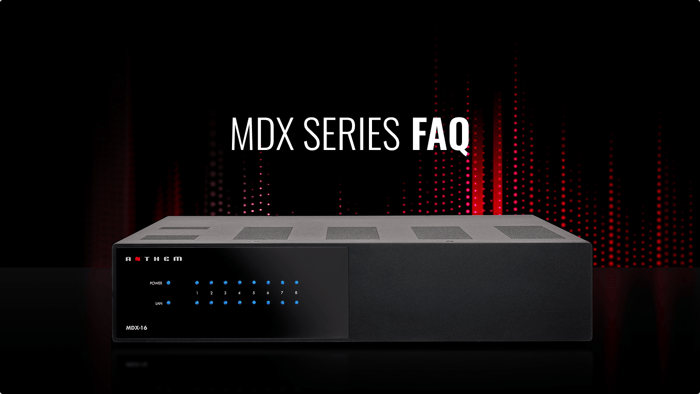

Curious about how to get the most from your Anthem MDX amplifier? Our Anthem MDX Series FAQ section provides clear, expert answers to common questions about setup, configuration, networking, and troubleshooting. Whether you’re powering multiple zones, integrating subwoofers, fine-tuning with Anthem Room Correction (ARC), or exploring advanced options like bridged high-output modes and IP/RS-232 control, these answers are designed to help you unlock the full potential of your MDX system in any installation.Table of Contents
- I. General Setup and Identification
- Q: How do I find the IP address of my MDX?
- Q: I am installing multiple MDX units. How can I identify a specific one?
- Q: How does the MDX work when the On Mode switch is set to Auto?
- Q: How long should the wire leads be when connecting to my MDX?
- Q: What type of speakers work best with the MDX, and how should I configure them?
- Q: How do I update the firmware on my MDX unit?
- II. Configuration and Source Issues
- Q: I’m connecting my DVD player to the MDX using a Toslink input, but I hear no sound.
- Q: My subwoofer is connected to the MDX using the RCA jack, but I get no response when playing music with low-frequency content. What should I do?
- Q: My CD player’s analog output level is very high (2 Vrms), and the MDX seems to be clipping. How can I prevent this?
- Q: I configured a stereo pair in bridge mode on Zones 1 and 2, but I only hear one channel. My source is split between Analog 1 and Analog 2.
- Q: Why does my MDX unit or zone turn on and play audio without my control system command?
- III. Control and Troubleshooting
- Q: I am sending commands to the MDX via the serial port, but the unit is not reacting.
- Q: I made an error configuring a Static IP. How do I switch the MDX back to DHCP mode?
- Q: How do I restore the MDX to its original factory firmware and settings?
- Q: My MDX unit is not producing any sound. What should I check before contacting my dealer?
- Q: I installed the latest firmware and had audio working before, but now it has stopped. The unit seems fine with solid blue lights—what could be causing this?
- IV. Fault Condition Indicators (Front Panel LEDs)
- V. Safety and Maintenance
I. General Setup and Identification
Q: How do I find the IP address of my MDX?
We recommend using Anthem’s ARC Genesis software or a utility called Fing.
Using ARC Genesis
Launch ARC Genesis on a PC or Mac.
Click Launch ARC.
On the device discovery screen, hover your mouse over the MDX.
The IP address will appear.
Using Fing
Fing is a free network device detection app (iOS, Android, Windows). It scans your network, identifies devices, and shows their IP addresses, often labeling them as MDX-8, MDX-16, or Paradigm Electronics.
Accessing the MDX Web Interface
Open a web browser (Chrome or Safari recommended).
Type the MDX IP address into the address bar.
Press Enter to open the configuration interface.
Q: I am installing multiple MDX units. How can I identify a specific one?
Use a web browser to open the MDX control interface, then:
Go to General > Preferences and enable Unit ID.
When set to On, the ID light on the back panel flashes, and the Power indicator on the front panel flashes.
You can also match the MAC Address shown under General > Information with the MAC Address printed on the back of the MDX.
Q: How does the MDX work when the On Mode switch is set to Auto?
When the On Mode switch (back panel) is set to Auto, the MDX monitors all analog and digital inputs while in standby to determine when to turn on.
Analog inputs: Monitored for a signal higher than –60 dBV (1 mVrms).
Digital inputs: Monitored for bit activity on the coaxial or Toslink inputs.
While operating, active channels are monitored. If the level drops below –60 dBV (analog or digital) for the duration set in Auto-Off delay, that zone turns off. When all zones are off, the unit enters standby.
The Trigger input also functions in Auto mode: if a signal is applied to Trig In, the MDX turns on even without audio signal.
Q: How long should the wire leads be when connecting to my MDX?
When wiring your MDX using the phoenix-style (Euroblock) connectors, it is important to strip only ¼–½ inch of insulation from each wire.
Ensure the wires are not frayed or exposed, as stray strands can touch other terminals, causing a short that may damage the unit or connected speakers.
For added safety and reliability, consider using wire ferrules, which help prevent frayed or exposed wires from making unintended contact.
Q: What type of speakers work best with the MDX, and how should I configure them?
The ideal speaker choice depends on your specific application, so we strongly recommend consulting the MDX manual for guidance.
A connection chart is available in the manual on Page 20, Section 3.2.
Later chapters of Section 3 provide detailed instructions on how to connect speakers to each zone.
Q: How do I update the firmware on my MDX unit?
There are two ways to update your firmware:
Automatic via LAN:
Connect your MDX to your network.
Log into the web user interface using the unit’s IP address.
If a firmware update is available, a red update banner will appear at the bottom of the screen. Click the prompt to start the update.
Manual via Web Interface:
Download the firmware file and change log from Anthem’s website: Latest Firmware Downloads.
Log into the MDX web interface and navigate to Store / Load / Update.
Upload the firmware file and follow the prompts to complete the update.
Tip: Updates usually take just a few minutes. Do not turn off the unit or press any buttons during the process.
II. Configuration and Source Issues
Q: I’m connecting my DVD player to the MDX using a Toslink input, but I hear no sound.
The MDX digital input only supports a PCM stream (up to 24-bit/192 kHz). If your source outputs a non-PCM stream (Dolby, DTS, etc.), audio will mute.
Open your DVD player’s audio setup menu.
Change the digital output format to PCM.
Q: My subwoofer is connected to the MDX using the RCA jack, but I get no response when playing music with low-frequency content. What should I do?
By default, the subwoofer is set to OFF in the MDX. To enable it:
Go to the Zones tab in the MDX interface.
Locate the Subwoofer module and switch it to ON.
Once enabled, adjust the crossover, level, and profile settings as needed (especially if the subwoofer is powered via the following Even Zone).
For a detailed guide, see Page 24, Section 3.6 of the MDX User Manual: MDX Manual PDF
Q: My CD player’s analog output level is very high (2 Vrms), and the MDX seems to be clipping. How can I prevent this?
You can reduce the input trim on the MDX:
Open the Inputs pane.
Select the input used by the CD player.
Adjust the Trim level, typically between –6 dB and –9 dB to avoid clipping.
Q: I configured a stereo pair in bridge mode on Zones 1 and 2, but I only hear one channel. My source is split between Analog 1 and Analog 2.
Inputs and speakers (even bridged) operate independently.
For Stereo Bridge mode:
Connect both left and right channels of your source to Analog 1.
Set Zone 1 Input Source to Analog 1.
In Stereo Bridge mode, Zone 1 becomes the master zone:
Source selection
Volume
Tone controls are all managed from Zone 1, and prior Zone 2 settings are ignored.
Q: Why does my MDX unit or zone turn on and play audio without my control system command?
Your MDX is likely set to Auto On Mode. The MDX has a silver toggle switch near the power connection with three ON Mode positions: Trig, Auto, and Ext Cmd. Each mode affects how the unit powers on and off:
Trig: The MDX turns on when it receives a voltage signal via the “Trig In” connection. It will enter standby after the Auto-Off delay once the trigger signal is removed and no audio is detected. The unit can turn on even if no audio is present.
Auto: The MDX turns on automatically when it detects an incoming audio signal on any digital or analog input. When all audio signals stop, it enters standby after ~20 minutes (default). You can adjust Auto-Off and Auto-On delays via the web interface:
General > Preferences > Auto-Off Delay / Auto-On Delay
Ext Cmd: The MDX turns on and off only when it receives commands from a control system via IP or RS-232. This mode is required when using third-party control systems.
Make sure your toggle switch is set to the mode that matches your intended control setup.
III. Control and Troubleshooting
Q: I am sending commands to the MDX via the serial port, but the unit is not reacting.
Confirm your controller is configured as follows:
Baud rate: 115200
Data bits: 8
Parity: None
Stop bits: 1
Flow control: None
Additionally:
Each command must end with the terminator ;.
CR/LF are not required.
Q: I made an error configuring a Static IP. How do I switch the MDX back to DHCP mode?
To reset to DHCP:
Use a pin or straightened paperclip to press the DHCP Reset / Factory Image button on the back panel.
Hold for about 1 second.
The blue ID LED will light to confirm DHCP mode has been selected.
Q: How do I restore the MDX to its original factory firmware and settings?
To reload the Factory Image (this erases all current and saved user/installer settings and ARC corrections):
Set the Master Power switch to Off and wait until the lights above the Network connection stop flashing (may take over a minute).
Using a pin, press and hold the DHCP Reset / Factory Image button.
While holding the button, turn the Master Power switch On.
Continue holding until the blue ID LED flashes twice.
The Factory Image reload takes about a minute, indicated by a chasing pattern of blue and red lights on the front panel.
Q: My MDX unit is not producing any sound. What should I check before contacting my dealer?
Follow these steps to ensure your MDX is configured and passing audio correctly:
Check for Updates: Make sure your MDX firmware is up to date via the Web UI.
Verify Source Connections: Ensure all cables between the MDX and your source devices are securely connected.
Check Speaker Wiring: Confirm that speaker wires are firmly attached to both the MDX and the speakers.
Review Web UI Configuration: Make sure each zone is properly configured in the MDX Web Interface.
Quick Test:
Set the On Mode Switch to Auto Mode.
Connect a local source to Input 1.
Adjust the source device volume to a reasonable level.
Play content. Zone 1 should automatically turn on and output audio through the connected speakers.
Q: I installed the latest firmware and had audio working before, but now it has stopped. The unit seems fine with solid blue lights—what could be causing this?
First, verify that your configurations are still correctly set in the Web User Interface. It’s also important to check that the On Mode Switch is in the correct position for your installation.
Pro Tip: Always export your configuration file before making firmware updates or other changes. This allows you to quickly restore your settings if something goes wrong. You can export your configuration via the Store/Load/Update section in the Web UI and save it to your computer.
IV. Fault Condition Indicators (Front Panel LEDs)
Q: What does it mean if the Zone LED is flashing blue (top and bottom)?
This indicates a Zone over-temperature condition. The module for that zone pair has exceeded a critical temperature and is shut down for protection.
Normal operation resumes automatically after sufficient cooling (typically a few minutes) if the system is in Auto or Trig mode.
If in Ext Cmd mode, a control command is required to turn it back on.
Q: What does it mean if the Zone LED is flashing red (bottom or both top and bottom)?
Red flashing (bottom/both) – Zone overcurrent
Caused by low impedance or a faulty speaker.
Normal operation resumes once the overload is removed (LEDs remain flashing for at least 10 seconds).
Red flashing (Power LED and Zone LED) – DC Fault
Abnormal DC detected on one of the speaker terminals.
The system shuts down to protect the speakers and the faulty zone (and its twin) will flash red.
To clear: power off the MDX for at least 1 minute, then power back on.
If the fault returns, the MDX requires service.
Red flashing during power-up – Initialization error
Possible DSP, ADC, SPDIF receiver, or DAC failure (the affected zone will flash red).
Perform an AC power cycle.
If the fault returns, the MDX requires service.
V. Safety and Maintenance
Q: Why is my MDX unit getting hot?
The MDX can become hot during normal operation. To ensure safe operation:
Provide adequate ventilation.
Do not place the unit near heat sources or in enclosed spaces that restrict airflow.
Do not cover the unit with objects (newspapers, tablecloths, curtains), as this can trap heat and potentially cause damage or fire.
The top surface can become hot.
Q: My power cord or plug is damaged, or liquid was spilled into the apparatus. What should I do?
If the apparatus is damaged in any way—such as:
damaged power cord or plug
liquid spilled or objects fallen into the apparatus
exposure to rain or moisture
…refer all servicing to qualified service personnel.
Q: Can I open the MDX to perform internal maintenance?
No.
There are no user-serviceable parts inside.
Do not remove the cover or back.
This reduces the risk of electric shock.
Refer all servicing to qualified service personnel.
Q: How do I replace the fuse?
The fuse must be replaced only with the same amperage and voltage type.
Fuse replacement should be performed by qualified service personnel.